3D room planner: furnish rooms in 2D and 3D with the same handles
Place, rotate, resize and colour furniture in the plan or in the model. Or let every room be furnished automatically and then move only what should stand elsewhere.
90 points, no payment details, ends by itself.
The short answer
How do I furnish a room in 3D without placing every piece by hand?
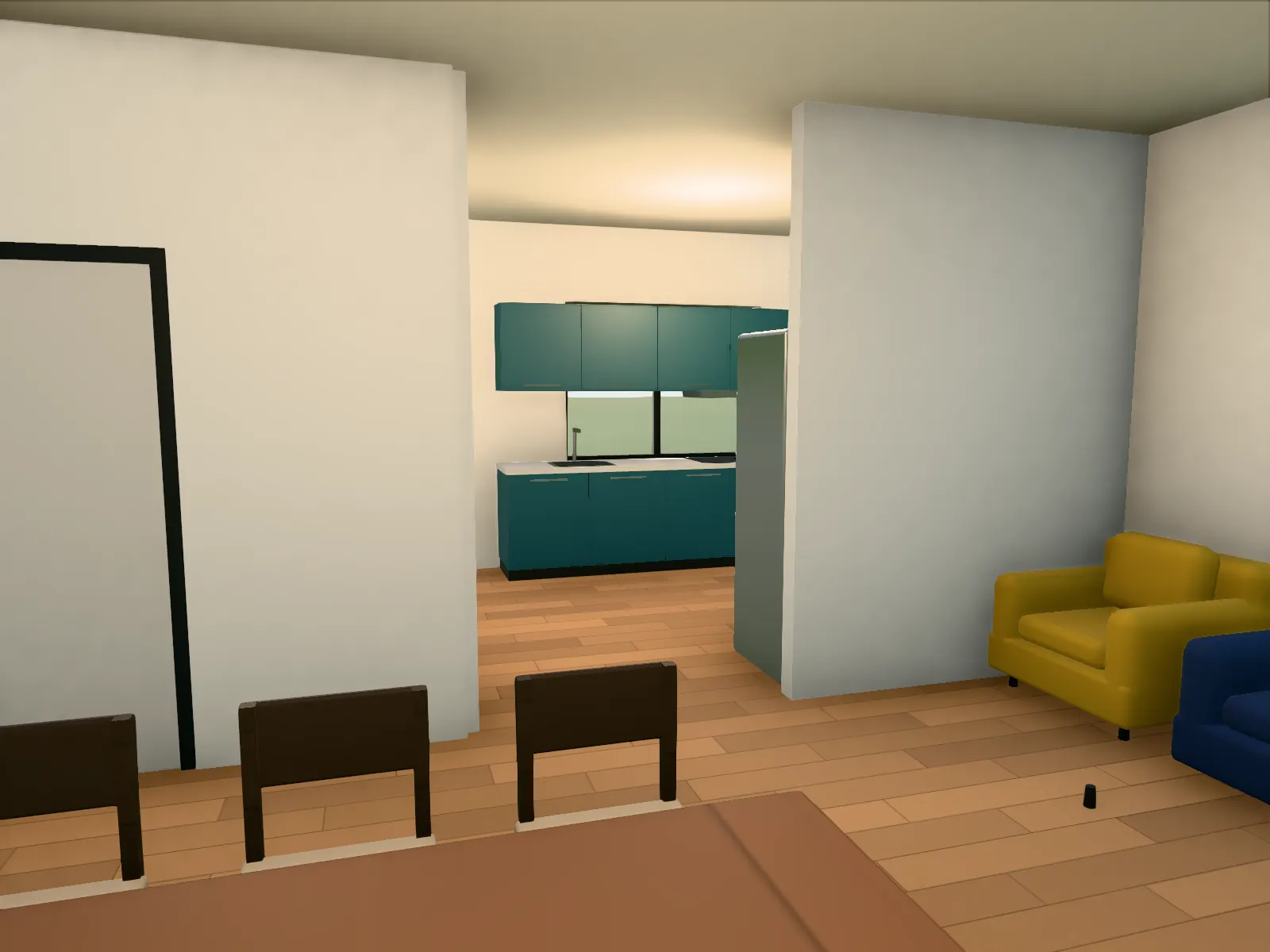
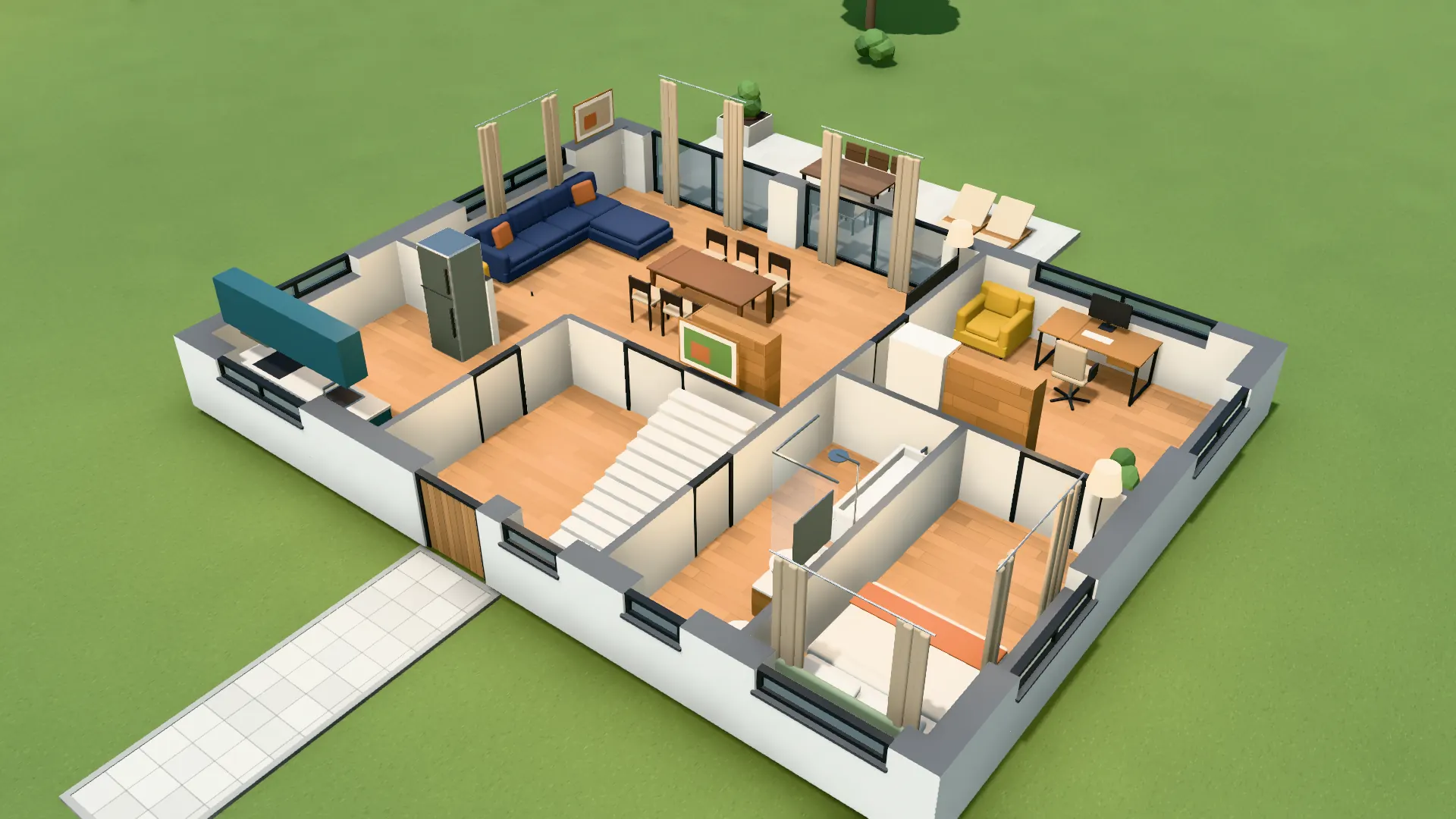
In VEDUTUM build mode you choose “furnish automatically”: the software recognises 17 room types from the name or your choice and places furniture so that nothing stands in a wall, a door swing or another piece, with 90 cm left to walk past. Then you move, rotate, copy and colour single pieces in the 2D plan or the 3D model with the same handles. Furnishing costs no points.
Facts from the software
- A catalogue of about 80 pieces in the groups living, kitchen and dining, sleeping, bathroom, office, fitness, garden and play.
- 17 room types, among them living, kitchen, bedroom, child’s room, bathroom, WC, study, kitchenette and utility room.
- 90 cm stay free in front of every piece that is used; tall furniture keeps clear of windows.
- Multiple selection, copy, rotate with R, delete with Del, 40 steps back with Ctrl+Z.
How to do it
- 01Read or draw the floor planUpload a plan, or in build mode drag walls from point to point; the grid snaps to 5 cm.
- 02Name the roomsOne click in the room, a name or a room type. “Guest WC” becomes a WC, a large “office” an open-plan office.
- 03Furnish automaticallyFurnish one room or all rooms of the storey. Where furniture already stands, the software asks whether to add only the empty rooms.
- 04AdjustDrag pieces, rotate them, resize them by their handles, choose a colour. The same in the 2D plan and the 3D model.
- 05Show itWalk through the rooms, take a 360-degree panorama or compute interior images; the furniture replaces the block pieces there.
One way of working for plan and model
Build mode uses the same tools in the 2D plan and the 3D model: select, drag, rotate, resize by the handles, copy, delete. In the plan you see the door swings, so no wardrobe ends up in front of a door leaf.
Each change rebuilds only the geometry; the camera stays where it was. You see straight away in the model whether the table in front of the window is too wide.
How automatic furnishing decides
The rules are the ones a person furnishes by: the sofa against the longest wall, the TV opposite, the bed with its head against a wall, chairs round the table. Every piece is checked as build mode checks it: no wall, no door swing, no other piece.
The same room always gets the same result. That is deliberate: the image model receives the same template for every variant, and only what you changed changes.
Captured in the software: Ground floor furnished automatically, view into the living room.
Questions and answers
Is the room planner free?
Furnishing itself costs no points. In the trial account every feature is open; points are needed only for reading a plan and for images from the image model.
Can I change the colour of furniture?
Yes, piece by piece. The colour shows in the model and goes into interior images.
Does it work on a tablet?
The model can be turned and walked through on tablets. A mouse is more comfortable for furnishing; on a phone a piece slides to the nearest free spot.
What happens to furniture I already placed?
When furnishing all rooms, the software asks whether to furnish only the empty rooms or all of them again. Otherwise placed pieces stay.
Features involved
From the knowledge base
Next step
Furnish a room
Load the example plan, choose “furnish automatically” and walk through the house.
30 days free with 90 points · no payment details · account in one minute