Apartment finder: filter units, see them in the plan and the 3D model
You build units from the rooms of a storey, with a status and an optional price. On the share page buyers filter them and see each unit coloured in the floor plan and in the 3D model.
0 points
In short
The VEDUTUM apartment finder shows the units of a project on the share page. The office builds each unit from rooms of one storey and enters name, status (available, reserved, sold) and, if wanted, price, the area as sold, an extra line and pictures. Visitors filter by status, rooms, price and floor; a click shows the floor plan with the rooms coloured, the pictures and, through “Show in the 3D model”, that storey alone seen from above at an angle. Areas the office did not enter are labelled as an estimate. It costs no points.
What it gives you
From the plan you already have
Units are made by clicking the rooms in the floor plan as read. No second drawing and no spreadsheet beside the model.
Status and price in one place
Available, reserved or sold, plus the price in the project currency or “Price on request”. What you save is what the share page shows.
Where the unit sits is visible
The floor plan colours the rooms of the unit in the colour of its status. The model shows its storey alone and highlights the floor of the unit.
No account for buyers
The apartment finder sits on the share page behind the share link. Filtering happens in the visitor’s browser.
How it works
- 01Read and check the storeysEvery unit needs named rooms in the floor plan of its storey. A storey without its own plan takes that of the ground floor.
- 02Add a unitIn the “Share” tab, “Units” panel: choose a name, such as “Top 1”, and the floor, then click the rooms. A room belongs to at most one unit per storey.
- 03Enter status, price and areaSet the status; price and the area as sold are optional. Without a price it says “Price on request”, without an area the estimate from the plan.
- 04Assign picturesChoose the pictures of the project that belong to the unit. They appear when a visitor opens the unit.
- 05Save and share“Save units” writes the list to the project. The apartment finder becomes visible as soon as a share link exists.
What visitors see and filter
Above the list are the filters: status with “All” and “Not sold”, rooms from, price up to and floor. The price filter appears once at least two units have a price, the floor filter when units lie on more than one storey. Units are sorted by storey and name. A unit without a price drops out of the “Price up to” filter.
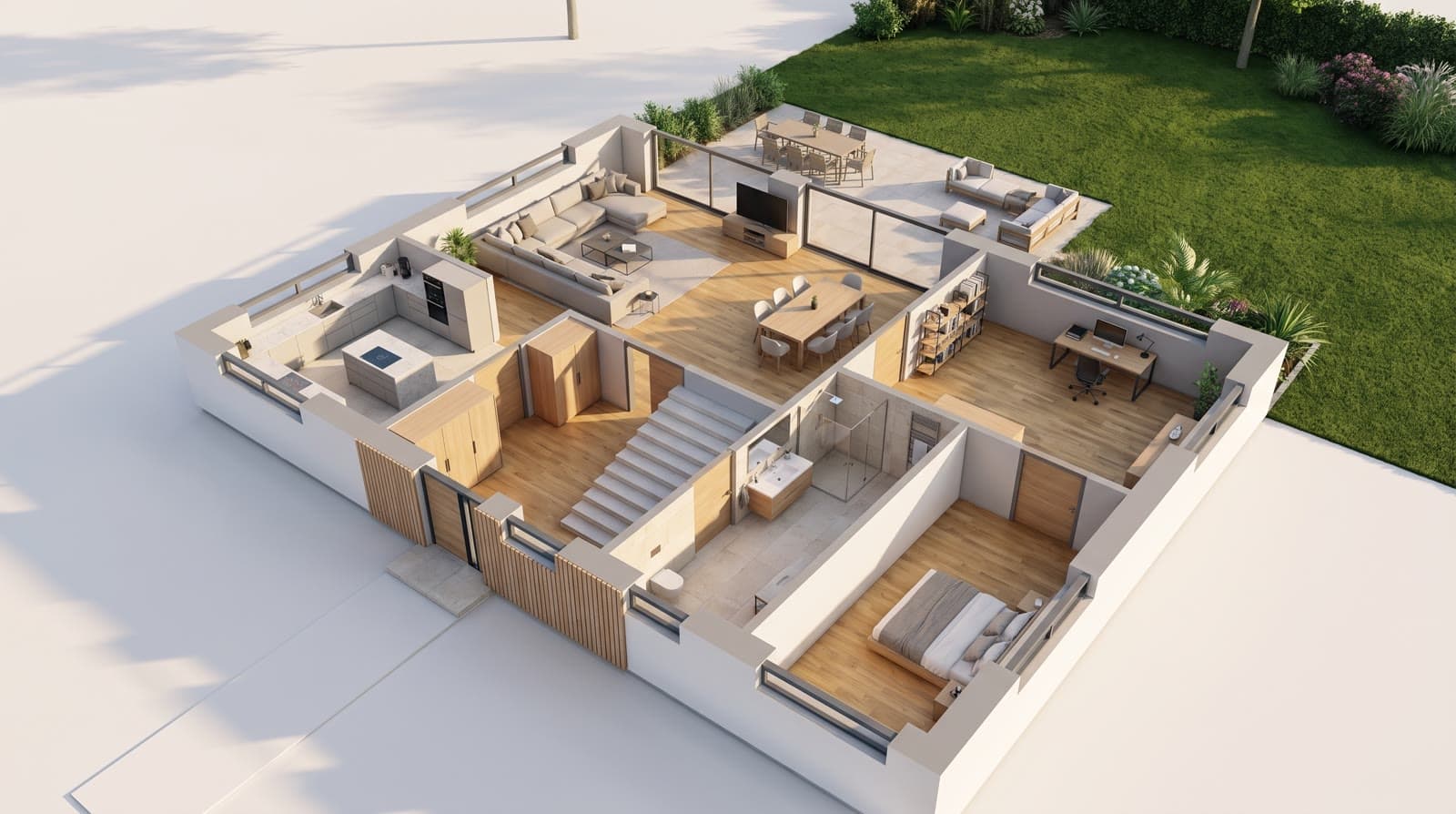
A click opens the unit: the floor plan of the storey with its rooms coloured, the room list, the pictures assigned to it and the “Show in the 3D model” button. The model then shows this storey alone from above at an angle and marks the floor of the unit.
How rooms and areas are counted
Living, dining, bedroom, children’s room and study count as rooms, recognised by the room name; kitchen, bathroom and hall do not. An open space with two names, such as living and dining, counts once.
The area comes from the plan as read: the floor the walls enclose around the room name, on a 10 cm grid, labelled “Area estimated from the plan”. If you enter the area as sold, your figure applies and is shown as yours. The software does not convert prices; they stand in the currency of the project.
Questions and answers
Do I have to state a price?
No. The price is optional; without it the unit says “Price on request”. The input reads both “250.000” and “250,000” as thousands.
Where does the area of a unit come from?
From the plan as read, labelled as an estimate. If you enter the area as sold, your figure is shown and replaces the estimate.
Do visitors see sold units?
Yes, with the status “Sold”. The “Not sold” filter hides them.
Does the apartment finder work with identical storeys?
Yes. An upper storey without its own plan takes the floor plan of the ground floor, just as the model stacks it. You add the units per storey.
Does the apartment finder cost points?
No. Adding, saving and showing units cost no points. Points are spent on reading the floor plans and on pictures.
From the knowledge base
More features
Next step
Build units from the floor plan
Read the floor plan, group rooms into units, share the link. The apartment finder costs no points.
14 days free with 150 points · no payment details · account in one minute