In short
From Revit, export through File, Export, IFC and modify the setup: IFC4 Reference View or IFC2x3, all storeys, furniture and equipment switched off. The option “Export only elements visible in view” is a quick way to shed ballast — and it drops exactly what happens to be hidden in the 3D view. What arrives in VEDUTUM are solids with one colour each; materials and parameters stay in the file.
The setup is the actual export
The route is File, Export, IFC, then “Modify setup”. Autodesk documents the options that decide the content there: the model view definition (IFC2x3 Coordination View 2.0 and IFC4 Reference View among others), how elements are handled, and under “Additional content” the option to export only elements visible in the view.
For a visualisation the model view definition matters less, as long as the solids come out whole. What matters more is that no storey is missing. Export from a 3D view in which everything is shown, then check the file size.
The trap with the view
“Export only elements visible in view” is tempting: hide what is in the way and the file shrinks. Autodesk itself describes using it for discipline-specific exports, and also documents that relationships between elements can be lost with this setting.
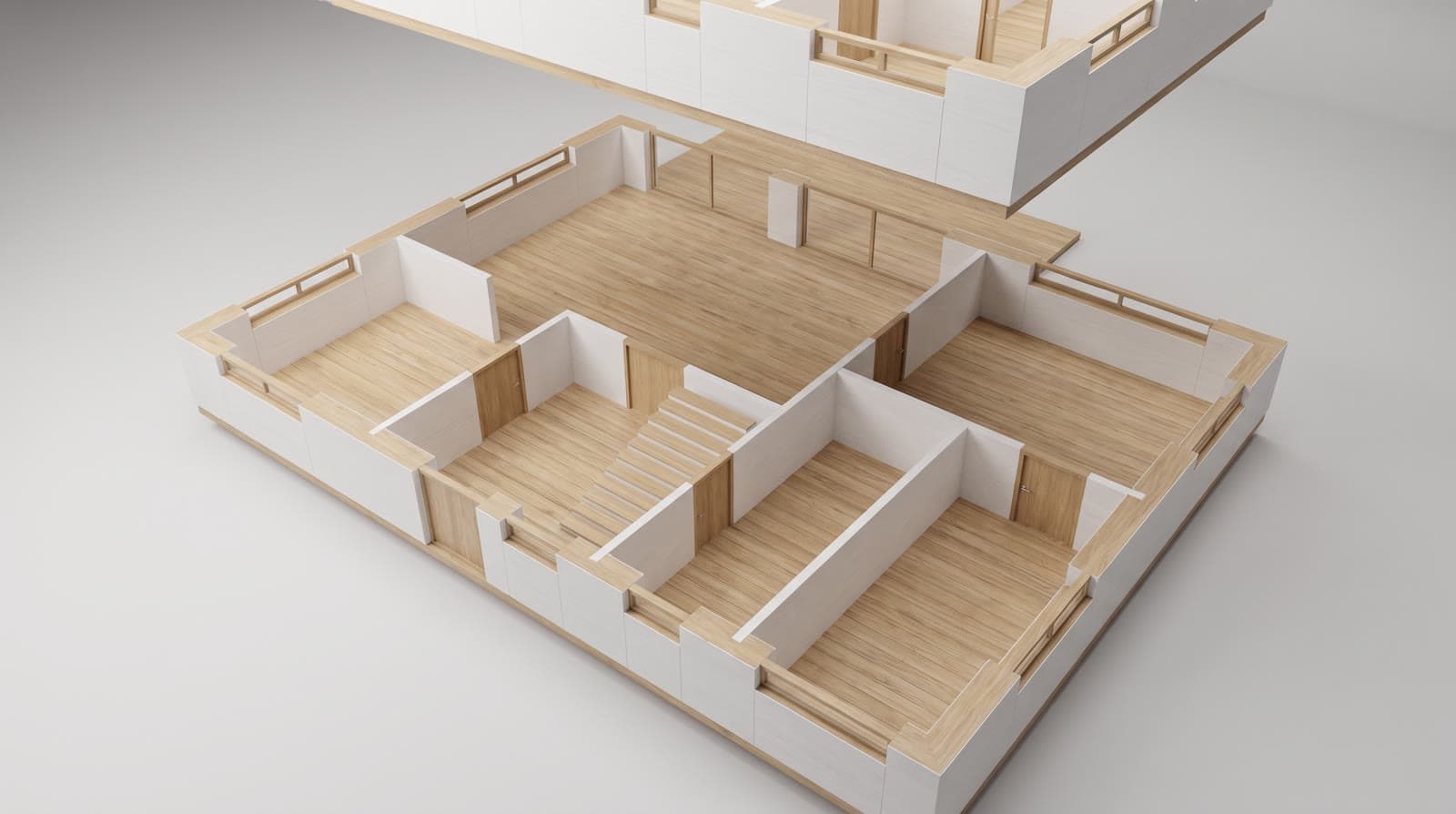
For images that matters less than for coordination — but the mistake that really hurts is mundane: a storey was hidden in the 3D view, and the model is missing it. Check that in the browser before you set cameras. The model stands there to be turned, and storeys can be shown one by one.
What happens on our side
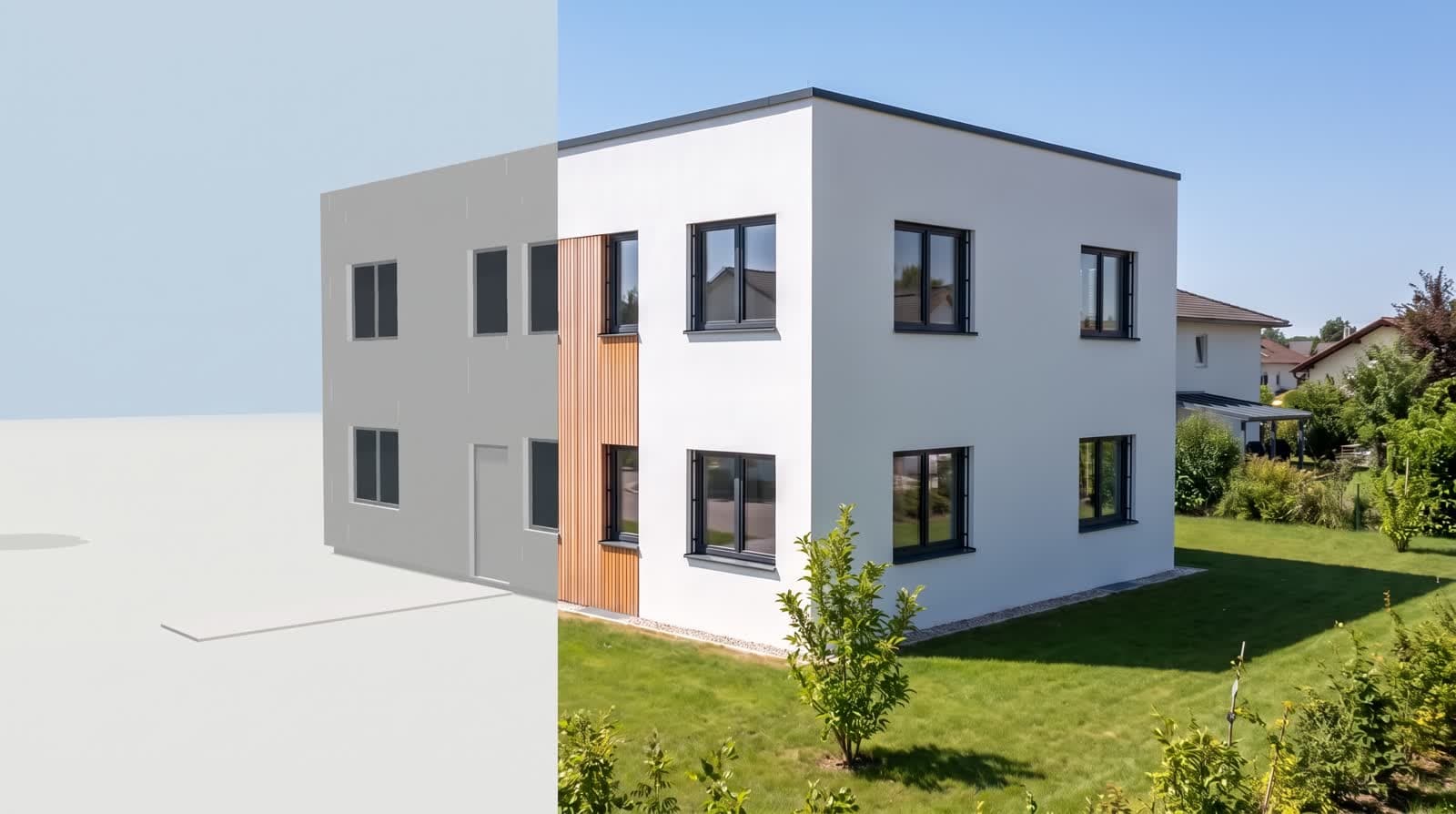
The IFC file is read in your browser, not on our server: web-ifc, an open-source reader compiled to WebAssembly, runs in the tab. It understands IFC2x3 and IFC4 and hands over every solid as a triangle mesh with one colour. What is uploaded afterwards is the GLB built from it — the original file stays on your machine.
So what arrives is the geometry: everything that has a solid in the export, with its colour and its position. What does not arrive: property sets, component names, layers, IFC classes and textures. They are in the file, but nothing draws them. If you need materials and textures, export GLB instead of IFC — that format carries them. The limit is 60 MB per file, and reading costs no points.
What happens to Revit materials
Revit knows materials with appearance, texture and cut pattern. Over IFC one colour per solid arrives. For the visualisation that means the façade is chosen in VEDUTUM from variants computed on the same volume — larch, render, brick, exposed concrete. The advantage is that ten variants show one house, not ten similar ones.
If you must keep your own materials, do not export IFC but take a route through a format that carries material and texture: GLB. Revit does not write it out of the box; the usual path is an add-in, or a detour through another program in the chain.
What this report is not
We have not run a measurement series over other people’s projects, so we quote no hit rate. Two things are stated here: what our reader takes from an IFC file, which is in our code, and what the program offers on export according to its own documentation. Your own model is the only test that settles it — and it costs nothing, because the import runs in the browser.
Questions and answers
IFC2x3 or IFC4 from Revit?
Both are read. For images only the solids count, so use the setup your office already works with and check the storeys in the model.
Why is a storey missing from the model?
Almost always “Export only elements visible in view”: what was hidden in the 3D view is not in the file. Check the view, export again.
Do parameters and component names come across?
No. We read geometry with one colour per solid. Property sets, names and classes are in the file but are not drawn — an image does not need them.
Can I send a GLB instead of IFC?
Yes, GLB and glTF are loaded unchanged, with materials and textures. Revit does not write GLB itself; that route goes through an add-in or another program.
Sources
This article also exists in German: read the German version.