In short
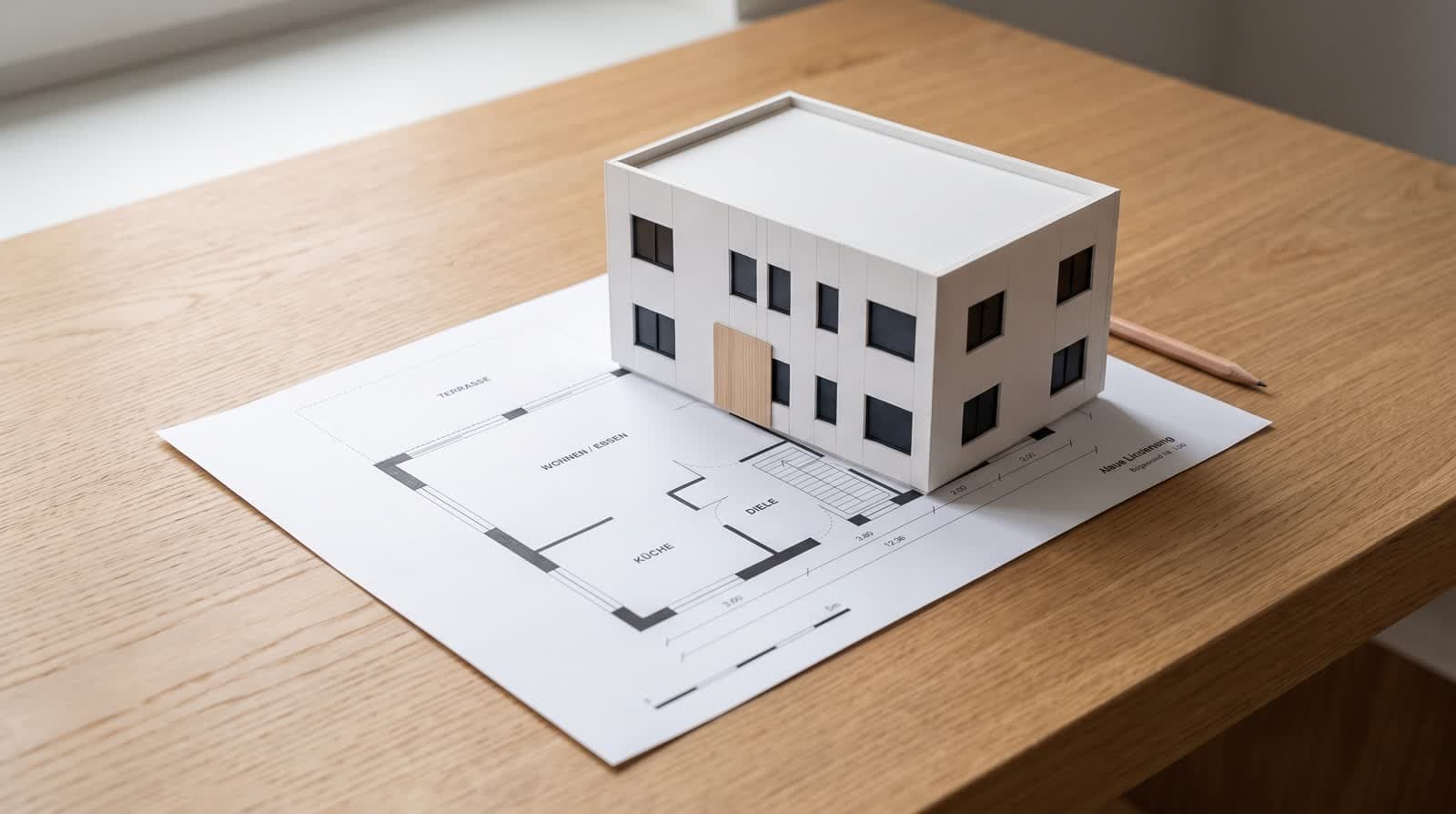
Clients open the share link, click the house and leave a numbered pin exactly where the question sits: a window, a terrace edge, a roof overhang. A mark on an enlarged picture or a general note works the same way. No account, no download, a name if they wish. The practice sees every item in its workspace, ticks it off, deletes it or answers with a note of its own, and receives an e-mail for each new entry. Numbers stay stable, so “pin 7” means the same thing in the next call as it did in the last.
Why e-mail threads fail for design feedback
A client writes “the window on the garden side feels small”. Which window, which storey, which picture? The answer takes two more mails, and by the time it arrives the thread has a second topic. Feedback on a building is spatial; text without a location loses the location first.
A pin does the opposite. It sits on the model at the point the client clicked, carries a number and a short text, and stays there while the practice works. Everyone talks about the same window.
Three ways to comment
Pin in the model
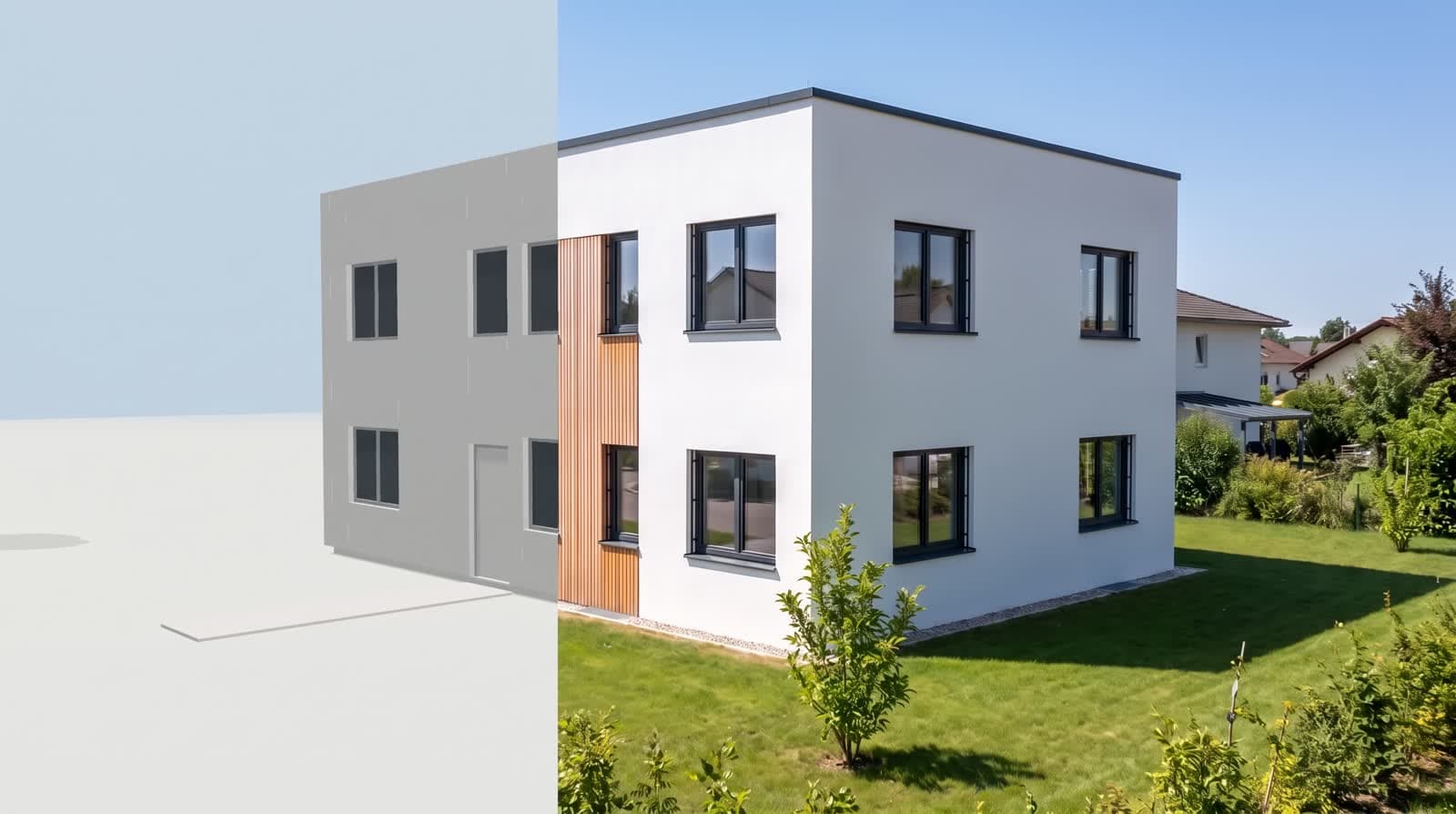
Choose “Comment”, click the house. The pin lands on the surface under the cursor, gets the next free number and stays visible while the model is turned or walked through.
Mark on a picture
Open a picture full size and click the spot. The mark is stored as a position on that picture, so it survives a different screen size.
General note
For everything that has no place: the brief, the timeline, a question about the next step.
No account for the client
The share link is enough. The client types the comment, optionally a name, and sends it. There is no login, no password to reset, nothing to install on a tablet at the kitchen table. The practice can withdraw the link at any time.
To keep the page usable, a link accepts at most 40 comments per hour. That is plenty for a review session and stops a stuck script or a prank from filling the list.
What is stored
Text and position
The comment text, the point on the model or the picture, and the number.
Name, if given
A free-text field. Leave it empty and the entry appears without a name.
Time and status
When it was written and whether the practice has resolved it. No cookie, no browser storage, no visitor profile. The privacy notice lists exactly these fields.
How the practice resolves items
- 01Read the listPins appear in the workspace next to the model, in the order they were written. Each new entry also arrives by e-mail, so nothing waits unnoticed.
- 02Answer or changeAdjust the wall or opening in the editor, re-run the pictures that changed, or reply with a note of your own under the same number.
- 03Tick offA resolved item is ticked; its number stays, so the record of what was asked and answered survives to the approval.
From comments to approval
Once the list is worked through, the client confirms the state on the same page with their name: “approve design”. Date and name appear in the project. That is not a contract, but it is a clear point in time both sides can refer to, and it sits next to the pins that led there.
Questions and answers
Does the client need to install anything?
No. The share link opens in any current browser, on a laptop or a tablet. Pins are set with a click or a tap.
Can several people comment on the same link?
Yes. Each entry gets its own number and, if given, the name of the person. The limit of 40 comments per link and hour applies to all of them together.
Can the client delete comments?
No. The client writes; the practice resolves and deletes. That keeps the record intact.
What happens to a pin when the wall moves?
The pin keeps its number and its place in the list. The practice makes the change and resolves the item; the client sees the new state under the same link.